How to Send a Fax From iPhone in 2026: The Complete Guide
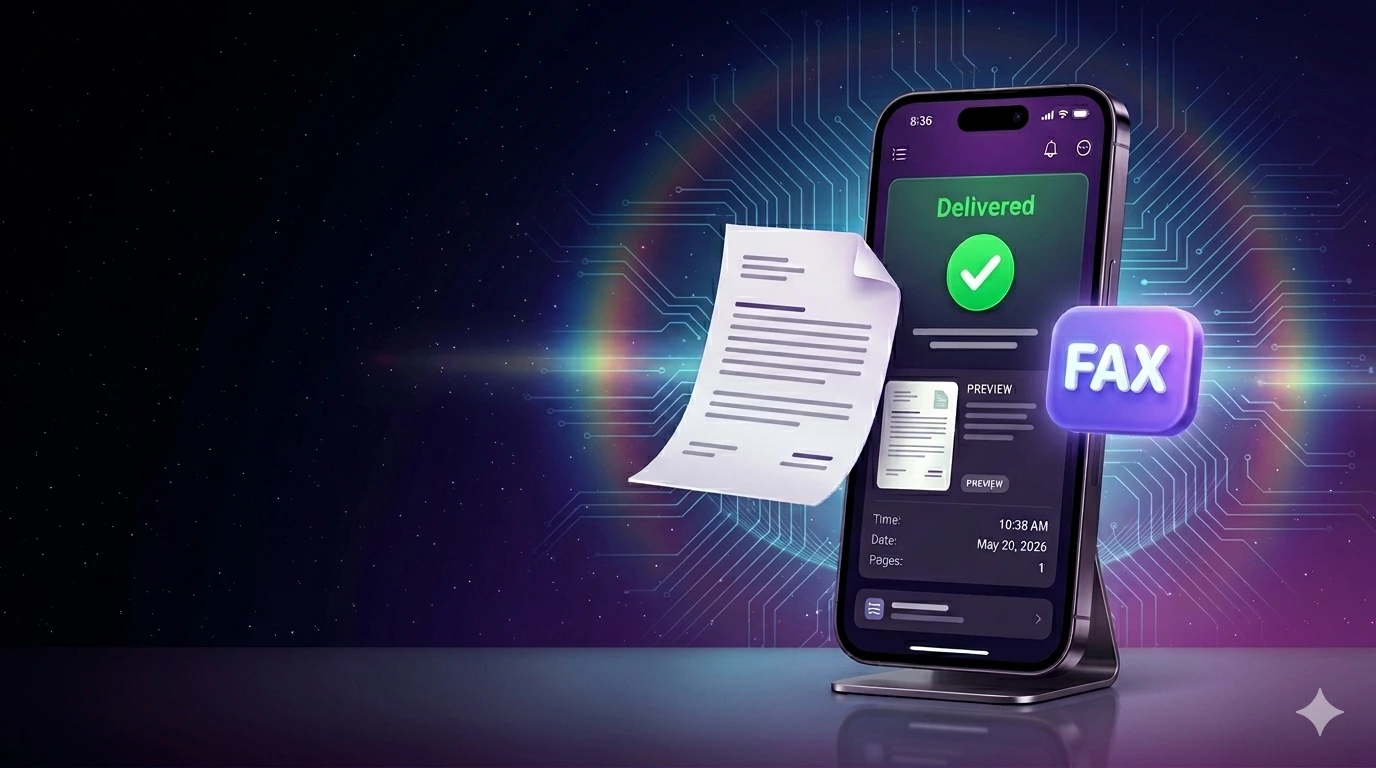
A quick honest disclosure before we start: we're the team at Const Agility, LLC that builds Faxify, an online fax service for the United States and Canada. This post walks through the iPhone fax flow with our app as the example because that's the one we know down to every screen and edge case, while the general principles apply to any iOS fax app and we'll call out where Faxify fits and where it doesn't. If you'd rather skip the walkthrough, jump to the comparison table or the "When Faxify is not the answer" section.
TL;DR
- You don't need a fax machine, a phone line, or any hardware. An iPhone fax app uploads the document to a carrier that handles the actual fax transmission.
- The fastest path with Faxify: open the file from Files, Photos, or Mail, tap Share, then Faxify, enter the recipient number, send. About a minute end-to-end.
- The free tier is 5 pages per month with no credit card and no trial that flips to paid. Paid plans start at $7.99/month, or $5.83/month effective on the annual plan (Standard, 250 pages), and both include a dedicated fax number for receiving.
- Faxify is single-user only today. If your team needs shared accounts with per-user logins, HelloFax or Dropbox Fax fits better.
- Faxify sends faxes over SignalWire's carrier network. Faxify is not HIPAA compliant and does not sign Business Associate Agreements. Do not send PHI through Faxify.
What "send a fax from iPhone" actually means in 2026
There's no fax modem inside your iPhone. There's no phone line. So when an app says it can send a fax from your phone, here's what's actually happening:
- You upload the document to the fax app.
- The app sends the file to a fax carrier, the layer that still operates physical fax infrastructure. Faxify uses SignalWire. Some competitors still reference Twilio's Programmable Fax, which Twilio sunset in December 2021, so it's worth checking what your fax app actually runs on.
- The carrier connects to the recipient's fax number over the public switched telephone network and transmits the document as a fax.
- The carrier reports back to the app: delivered, busy, no answer, or a more specific failure code.
For you, the experience is just "tap, type the number, send." Everything underneath is the carrier's problem. For background on how online fax fits into the broader 2026 communication stack, see our primer on what online fax is.
Can you send a fax from iPhone without an app?
Yes, in Safari. iPhone itself has no built-in fax feature: Files, Photos, Mail, and the share sheet can't send a fax on their own, so something has to hand the document to a fax carrier.
That something can be a browser tab, with nothing to install. Open app.faxify.com in Safari, sign in, upload the document, enter the recipient's fax number, and send. It's the same Faxify account as the app, with the same 5 free pages a month and the same fax history. The app is still quicker for repeat sends, because it puts Faxify in the iPhone share sheet.
Email isn't a route with Faxify yet: it has no email-to-fax today (in development, not shipped), so emailing a document to Faxify won't fax it. If faxing from the Mail app is what you need, eFax, MyFax, and Fax.Plus offer email-to-fax now.
The fastest way to send a fax from your iPhone
If you already have an iPhone fax app installed and just need the steps:
- Get your document into the app: import an existing file (PDF, Word DOC/DOCX, JPG/PNG) from Files, Photos, Drive, or Dropbox, or scan paper with the built-in scanner.
- Tap Share, then choose Faxify (if importing), or open Faxify directly (if scanning).
- Enter the recipient's fax number: country code, area code, number.
- (Optional) Add a cover page.
- Preview the fax to confirm pages and layout look right.
- Tap Send. The app handles the rest.
Time to first fax: about a minute, less if the document was already in Files. Delivery confirmation arrives within 30 to 60 seconds for short faxes, longer for multi-page documents.
If you don't have a fax app yet, download Faxify on the App Store and continue with the walkthrough below.
Step-by-step: sending a fax from your iPhone with Faxify
The walkthrough below assumes you've installed Faxify and opened it for the first time. The free tier gives you 5 pages per month with no credit card, so you can do a full test send without committing to a plan.
Step 1 — Get your document into the app
There are two paths to your document. You'll use one or the other depending on whether the file already exists or only lives on paper.
Path A — Import a file you already have
Faxify accepts documents from anywhere on your iPhone:
- Files / iCloud Drive: tap the import icon, browse to the PDF or Word doc.
- Photos: pick a photo of a signed form, whiteboard, or anything that's already a picture.
- Mail attachments: tap-and-hold the attachment, then Share, then Faxify.
- Google Drive / Dropbox: connect once, then import directly inside the app.
Supported file types: PDF, DOC / DOCX (Microsoft Word), JPG / PNG / TIFF / SVG / WebP images, plus XLS / XLSX and PPT / PPTX. Faxify converts everything to fax-optimal format automatically, so there's no need to convert Word to PDF first or flatten images.
Path B — Scan a paper document with the built-in scanner
If the document only exists on paper (a signed agreement, a claim form for your insurer, a school enrollment doc), use the in-app scanner:
- Tap the Scan button on the home screen.
- Position the document inside the on-screen frame. Faxify auto-detects edges and snaps the photo.
- Crop, rotate, and adjust contrast if needed.
- Add more pages (tap +) to build a multi-page document.
- Save the scan and continue.
The scanner runs on your phone, so pages aren't uploaded until you actually send. That keeps your document private during capture.
Step 2 — Enter the recipient's fax number
Format: country code, area code, number, no separators required. Faxify accepts +15551234567, (555) 123-4567, or 5551234567 and normalizes them all to the same number. Faxify delivers to US and Canada fax numbers only; international destinations aren't supported today, so if you're faxing outside North America, see the "When Faxify is not the answer" section below.
Step 3 — Add a cover page (optional)
A cover page is entirely optional. If you don't need one (say, you're faxing a single signed form to an insurer's claims desk that just needs the page), skip ahead to preview.
If you do want one, Faxify includes built-in cover-page templates you can customize with:
- Your name, business name, sender fax number (if you have one).
- The recipient's name, organization, fax number.
- A subject line.
- A short note.
- An in-app visual signature you draw with your finger or Apple Pencil.
A note on what that signature does and doesn't do: Faxify's in-app signature is for visual signatures on cover pages, the recognizable squiggle a fax recipient sees at the bottom of "Sent by Jane Doe." It's not a legally-binding document e-signature like DocuSign or Adobe Sign produce. If you need a contract signed with a verifiable signature workflow, use those tools first, then fax the signed PDF with Faxify.
Step 4 — Preview the fax
Before you send, Faxify shows a full preview of every page, exactly how it will print on the recipient's machine. This is your last chance to catch a missing page, a sideways scan, an out-of-frame crop, or a typo on the cover page. Swipe through each page; tap any earlier step to go back and fix something. Once the preview looks right, continue to send.
Step 5 — Send and watch the delivery status
Tap Send. The app uploads the document, hands it to SignalWire, and shows a live status:
- Queued: accepted, waiting to dial.
- In progress: actively dialing the recipient.
- Delivered: recipient's machine confirmed reception.
- Failed: with a specific reason (busy, no answer, no fax machine answering, etc.).
The "Delivered" status here is meaningful. Faxify only marks a fax delivered when the recipient's machine confirms it received every page. Most competitors mark "Sent" when the file finishes uploading to their server, which tells you nothing about whether the fax actually reached the other end. If your workflow needs proof of delivery (court filings, regulatory submissions, anything with an audit trail), the carrier-confirmed status matters.
You can also see the full send history under the Sent tab, including the time, page count, and any failure reasons for re-send.
When you need a paid plan
The free 5-page tier covers most occasional fax needs. Once you cross that line consistently, Faxify Standard is $7.99/month (or $5.83/month effective on the annual plan) for 250 pages, and both monthly and annual include a dedicated fax number for receiving. Higher volume tiers scale up to 2,000 pages, and a real person answers support email and calls on every paid plan — not a chatbot.
For the full pricing math against eFax, MyFax, RingCentral Fax, HelloFax, and Fax.Plus, including the per-page overage tricks competitors bury, see our pricing comparison post.
Faxify on iPhone, iPad, and Mac
Faxify ships as an iOS app that runs on:
- iPhone: full feature set.
- iPad: same app, optimized for the larger screen. The split-view scan + send flow is faster on iPad than on phone.
- Apple Silicon Mac (M1 or newer): the iPad app runs natively on Apple Silicon Macs (M1 or newer) via macOS app compatibility — no separate Mac app, but a real Mac experience. Keyboard shortcuts, drag-and-drop documents from Finder, multi-window. Look for "Faxify" in the Mac App Store; the listing notes "Designed for iPad."
- Intel Mac: the iPad app doesn't run, but the web app at app.faxify.com does. Same account, same history, same subscription.
The single-account model means a fax sent from your iPhone shows up in the history on your iPad and your Mac immediately. Drafts sync, cover-page templates sync, received faxes appear everywhere. There's no "import on the desktop" or "manual sync" step.
The 3-app stack replacement
Most iPhone fax apps do one thing: fax. The actual workflow takes more than that — scanning paper, merging PDFs, compressing a large file, cropping an image, signing a cover page — which typically means stitching together a fax service, a scanner app, and a PDF toolkit. Faxify Standard annual at $5.83/month effective covers all three in a single app: fax core, built-in scanner, PDF tools (merge, split, compress, reorder, convert), image editor, and cover-page customization. Honest caveat: Faxify doesn't replace DocuSign or Adobe Sign (no legally-binding document e-signature) and doesn't replace Notion, Google Docs, or Microsoft Word for editing. We open and prepare those files for faxing; we don't try to be a word processor.
Best fax apps for iPhone: a quick comparison
If you want a one-screen scan of how Faxify stacks up against the iPhone fax apps people actually consider:
| Feature | Faxify | eFax | Fax.Plus | FaxZero |
|---|---|---|---|---|
| Free tier | 5 pages/month, no card | None (7-day trial) | 10 pages once, no card | 5 faxes/day, 3 pages each, branded |
| Entry paid plan | $7.99/mo monthly · $5.83/mo annual | $20/mo (first month $4.99) | $6.99/mo (Basic, 200 pages) | Pay-per-use only |
| Per-page overage | None (upgrade tier) | $0.10 | $0.10 | N/A |
| Dedicated fax number on entry plan | Yes (annual, or Standard+ monthly) | Yes | Yes (Basic+) | No |
| In-app scanner | Yes | Yes | Yes | No |
| In-app PDF tools | Yes (merge / split / compress / reorder / convert) | No | Limited | No |
| Cover page with signature | Yes (visual signature) | Yes (basic) | Yes | Yes |
| Carrier-confirmed "Delivered" status | Yes | Status varies | Yes | Limited |
| Real human support (not chatbot-first) | Yes (email, phone, video) | Chatbot-first | Limited | Limited |
| AI integration (ChatGPT / Claude / Cursor) | Yes (via Faxify MCP, every plan) | No | Yes (Fax.Plus MCP, paid plans) | No |
Faxing from an Android phone instead? Our guide to the best fax app for Android compares the same four apps on Android. For a deeper recommendation-framed comparison across the broader online-fax landscape, see our hub post on the best online fax service. For the longer view on where the fax industry is heading, see our analysis of digital faxing in 2026.
When Faxify is not the answer
We're trying to be honest about where Faxify fits and where it doesn't. If your situation matches one of these, look elsewhere:
- International fax destinations. Faxify only delivers to US and Canada fax numbers. For international destinations, eFax has broader coverage, or developers can use Telnyx directly.
- A team that needs per-user logins. Faxify is single-user today. If you have five people who each need their own login on a shared fax line, HelloFax (up to 20 team members on Small Business at $39.99/month) fits better.
- Document e-signature. Faxify's in-app signature is for cover pages, not contracts. Use DocuSign or Adobe Sign for legally-binding signatures.
- Email-to-fax workflow. Faxify's email-to-fax bridge is in development, not shipped today. eFax, MyFax, and Fax.Plus all have email-to-fax working now if that's central to your flow.
- Native Mac app. The iPad-app-on-Mac experience via Apple Silicon is good, but it's not a hand-built Mac app. If "native Mac app" is a hard requirement, the web app is the alternative on Faxify; otherwise, check Fax.Plus's macOS app.
- Pay-as-you-go with no monthly minimum. Faxify's no-subscription option is the one-time Fax Pass: $2.99 for one fax up to 25 pages, or $4.99 for one fax up to 100 pages, paid once and used only when the fax is delivered (it's restored if the fax can't be delivered). If you'd rather not install an app or create an account at all, FaxZero's pay-per-use model (free with FaxZero branding on the cover, or paid per fax) still fits a one-off send.
Faxify works with AI assistants, too
This is niche but worth knowing if you live in ChatGPT, Claude, or Cursor: Faxify ships an MCP server that lets AI assistants send and receive faxes on your behalf. "Fax this PDF to 555-123-4567 with my standard cover page" works as a natural-language command in any MCP-capable AI client. It's not the reason most iPhone users will pick Faxify, but if you're already automating workflows with AI tools, it removes a manual step.
FAQ
Can I really send a fax from my iPhone without a fax machine? Yes. With an app like Faxify, your iPhone uploads the document to a carrier that handles the actual fax transmission over the phone network. No machine, no phone line, no hardware. Faxify offers 5 free pages per month with no credit card.
How long does it take to send a fax from iPhone? Once your document is in the app, sending takes about 30 to 60 seconds for a typical 1 to 5 page fax. Faxify reports "Delivered" only when the recipient's machine confirms reception (carrier-confirmed), not when the file finishes uploading, so the status is meaningful.
Is sending sensitive documents by iPhone fax safe for HIPAA workflows? No. Faxify is not HIPAA compliant and does not sign Business Associate Agreements, and that applies to faxing from your iPhone exactly as it does everywhere else. Do not send PHI (Protected Health Information) through Faxify. This applies to every plan, free and paid — there is no HIPAA tier. Faxify's carrier and document-storage providers hold their own BAAs with Faxify, which extends no HIPAA coverage to you.
Can I receive faxes on my iPhone too? Yes, but receiving requires a dedicated fax number. Faxify includes one on every annual plan and on Standard, Professional, and Elite monthly plans. Only the free tier and Basic monthly plans are send-only. Incoming faxes appear instantly with notifications.
Does the Faxify iPhone app work on iPad and Mac? The same iOS app runs on iPhone and iPad with full feature parity. On Apple Silicon Macs (M1 or newer), the iPad app runs natively via macOS app compatibility — a real Mac experience without a separate Mac app. Intel Macs use the web app at app.faxify.com.
What file types can I send as a fax from iPhone? PDF, Microsoft Word (DOC/DOCX), Excel (XLS/XLSX), PowerPoint (PPT/PPTX), JPEG, PNG, TIFF, SVG, WebP images, and pages from the built-in scanner. Faxify converts files to fax-optimal format automatically, with no manual PDF conversion needed.
Ready to send a fax?
Faxify is free for the first 5 pages every month — no credit card, no trial. Need to send just one fax? A single Fax Pass is $2.99, no subscription. Paid plans start at $7.99/month (about $5.83/month on the annual plan) and include a dedicated fax number for incoming faxes.
Download Faxify for iOS · Get Faxify for Android · Use Faxify on the Web
For business volume
Email hello@faxify.com or schedule a call with our founder, Jangul Aslam to talk through volume pricing or anything specific to your workflow. You'll reach a real person on email, phone, or video call, never a chatbot dressed up as support.
Don't need fax? Try NxtTools
NxtTools is our companion app, the same PDF tools, scanner, and document toolkit as Faxify, minus the fax core. Free, ad-supported, no account required.
Written by Zoya Aslam at Const Agility, LLC — makers of Faxify.